Then you look at the listings. One memory kit offers 32 GB, another advertises DDR5-6000, and a third promises low latency, an overclocking profile and colourful lighting. They look similar, but those differences can determine whether the memory works in your computer at all.
Choosing desktop RAM is not simply a matter of buying the largest capacity or the highest number. Compatibility comes first, sufficient capacity comes next, and extra speed is worth considering after both are settled.
Is RAM actually what your computer needs?
RAM, short for random-access memory, is the computer’s temporary working space. It holds information that the processor and running applications need to access quickly. Your SSD or hard drive provides longer-term storage for the operating system, programmes and files. Adding RAM therefore does not create more space for your photograph collection in the way that installing a larger SSD would.
When there is insufficient working memory, the computer has to spend more effort moving data around instead of keeping everything immediately available. More RAM can help in that situation. However, a memory upgrade is not a universal remedy for a slow computer: storage performance, processor load and unnecessary background applications also deserve attention.
Before buying, observe the computer while doing the work that feels slow. In Windows, press Ctrl + Shift + Esc to open Task Manager, then examine the Performance section and memory usage. Check processor and disk activity too. Repeatedly running close to your available memory capacity alongside noticeable delays is a reason to investigate RAM, not proof that it is the only problem.
This distinction protects your budget. In a hypothetical computer that struggles whenever several large applications are open, additional capacity deserves consideration. In another that already has plenty of available memory, buying twice as much without investigating the slowdown would be an expensive guess.
DDR4 or DDR5: let the motherboard decide
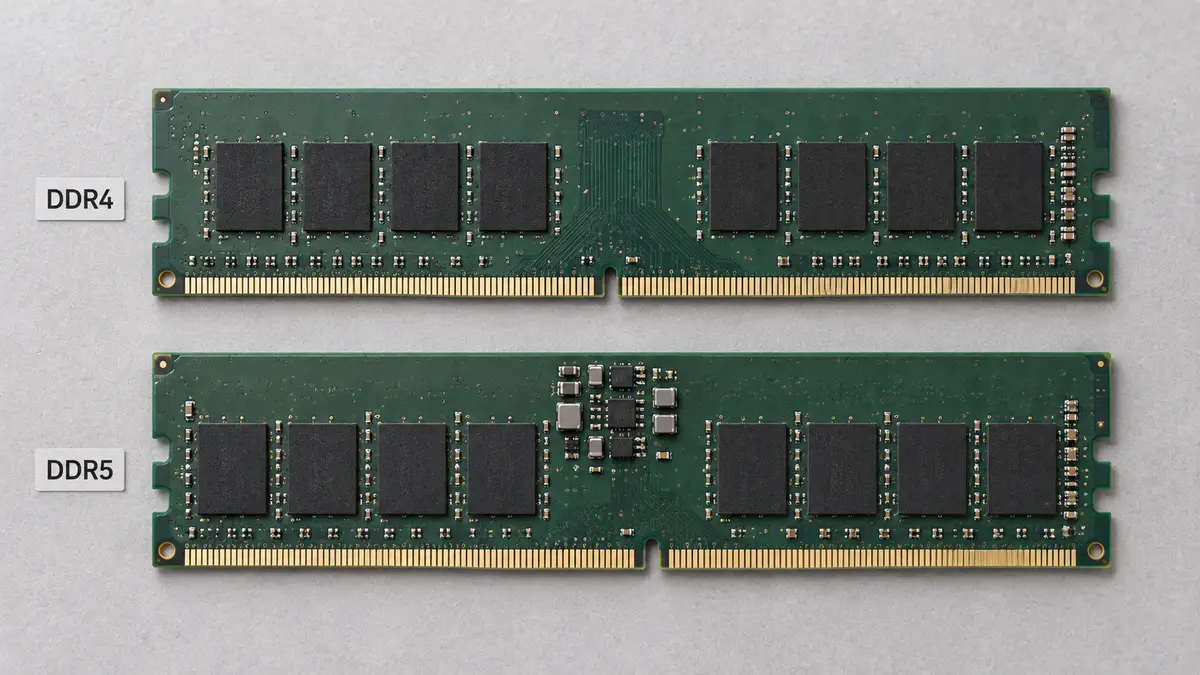
The first specification to establish is the memory generation supported by your motherboard. DDR4 and DDR5 are different standards, not interchangeable performance settings. Their electrical requirements and connector keying differ. A DDR5 module cannot replace DDR4 simply because both are described as desktop RAM, and a BIOS update cannot turn a DDR4 slot into a DDR5 slot.
For an existing computer, identify the exact motherboard or complete desktop model and consult its documentation. The full name matters, including any suffix that distinguishes one version from another. For a new build, choose the processor, motherboard and memory as a compatible combination rather than treating RAM as an independent purchase.
The physical format matters as well. Conventional desktop boards generally use full-size DIMMs, commonly unbuffered modules called UDIMMs. SO-DIMMs are shorter modules used in many laptops and small computers. A mini PC standing on your desk may therefore need a different format from a traditional tower. Check its service documentation rather than relying on the word “desktop”.
Next, check the supported total capacity, capacity per module and memory configurations. The motherboard manufacturer’s Qualified Vendor List, or QVL, identifies tested memory products. Match the exact part number and relevant configuration, not merely the brand. Pay attention to processor and BIOS notes too: a tested kit is useful evidence, but it does not remove the need to follow the board’s requirements.
Choose enough capacity for your busiest day
Capacity, measured in gigabytes, determines how much working information the memory can hold. The useful target is not what your computer needs immediately after starting. It is what it needs when your usual applications, documents and background tasks are running together.
For a new general-purpose desktop, I would treat 16 GB as a reasonable starting point and compare the cost of 32 GB before deciding. For gaming alongside voice chat, browser tabs and other applications, 32 GB would usually be my starting recommendation. These are buying guidelines, not guarantees that every programme or game will run comfortably.
The following ranges provide a practical starting point for that decision.
Intended use | Capacity worth considering | How to interpret it |
|---|---|---|
Documents, browsing, video calls and household use | 16 GB | Start here for a straightforward computer; assess how much you keep open together. |
Gaming, heavier multitasking and mixed home-office work | 32 GB | A useful comparison point when buying a new multipurpose desktop. |
More demanding creative projects or several virtual machines | 48–64 GB | Let actual project requirements justify the additional capacity. |
Particularly large professional workloads | 96 GB or more | Confirm that both the workload and the platform support the investment. |
A virtual machine is a separate operating system running inside your existing computer; allowing several of them their own memory can change the calculation considerably. Whatever the workload, compare the requirements of the actual software and project rather than assuming that a broad label such as “editing” determines one correct capacity.
You may also encounter DDR5 modules with capacities such as 24 GB or 48 GB, allowing two-module kits of 48 GB or 96 GB. These are legitimate options, but the exact module capacity and platform support still need checking.
For a new multipurpose desktop, I would regard 8 GB as a budget compromise rather than a target. At the other extreme, buying 128 GB for ordinary correspondence needs a stronger justification than wanting the specification to look impressive.

One module, two modules or four?
Capacity alone does not describe how the memory is arranged. A 32 GB purchase could mean one 32 GB module, two 16 GB modules or four 8 GB modules.
Many mainstream desktop platforms have two memory channels: separate paths through which the processor’s memory controller communicates with RAM. Installing an appropriate pair across both channels increases available memory bandwidth compared with populating only one. Two modules do not double the computer’s overall speed, but their arrangement can matter.
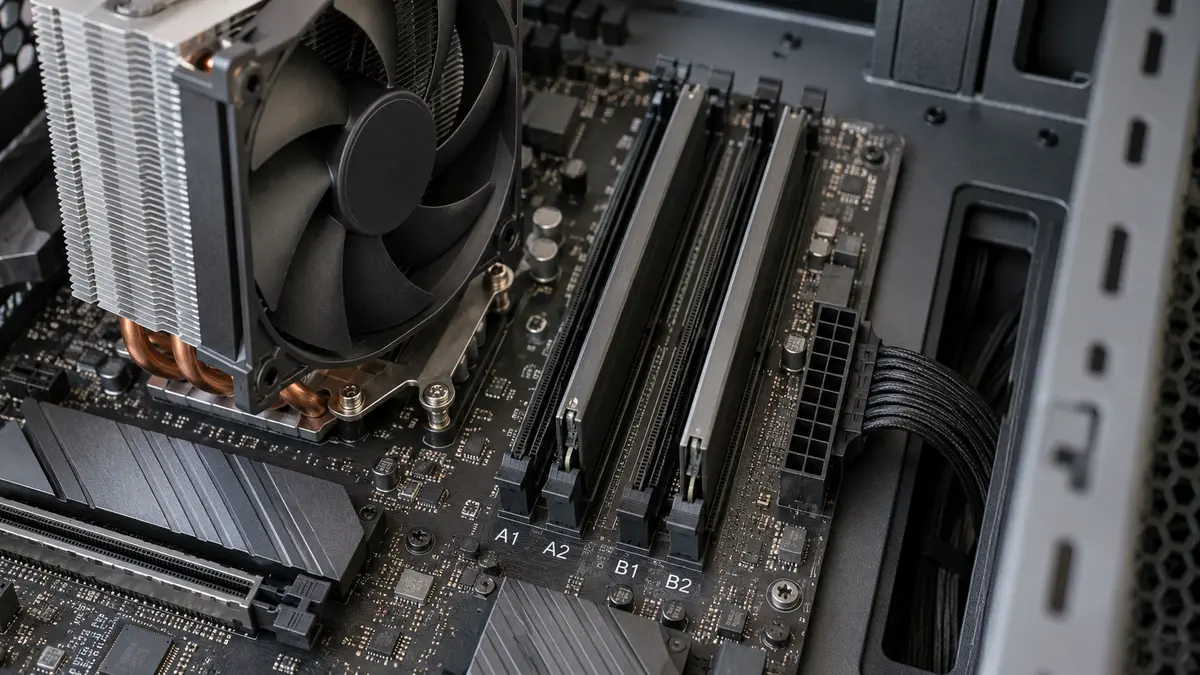
For a new mainstream dual-channel desktop, I would generally begin with a matched two-module kit of the required capacity. Use the slots specified in the motherboard manual, which may designate a pair such as A2 and B2. Do not assume that any two neighbouring slots provide the recommended arrangement.
Four modules do not turn a two-channel platform into a four-channel one, and filling every slot can change supported memory speeds. AMD’s specifications for the Ryzen 7 9700X illustrate this: its listed maximum standard memory speed is DDR5-5600 with two modules but DDR5-3600 with four, for the rank configurations shown. Those figures describe that processor’s official support, not a universal rule or a prediction of every overclocked system.
Consequently, when choosing between two 32 GB modules and four 16 GB modules for a hypothetical 64 GB system, I would investigate the two-module configuration first. It leaves fewer modules to accommodate and, on a four-slot board, preserves physical expansion space. Empty slots should not, however, be mistaken for a guarantee that adding another kit later will maintain the same speed.
DDR5 also divides each module’s data interface into two subchannels. That internal design does not make a single DDR5 stick equivalent to populating both memory channels of the desktop platform.
What the speed and CL numbers really mean
A description such as DDR5-6000 identifies a memory data rate of 6,000 megatransfers per second, written as MT/s. This describes transfers, not capacity. DDR memory transfers data twice per clock cycle, which is why a diagnostic utility showing a 3,000 MHz memory clock can be consistent with DDR5-6000 operation. Check what the utility is reporting before concluding that the memory is running at half speed.
Higher data rates can help workloads that benefit from additional memory bandwidth. In games, the improvement depends on the game and the rest of the system; there is no fixed percentage gain from moving between two memory speeds. Compare results from similar processors, graphics settings and memory capacities rather than choosing from transfer rate alone.
Latency describes waiting time. The CL figure refers to CAS latency: a particular delay expressed in memory clock cycles. Comparing CL numbers without considering the data rate can therefore be misleading. A lower cycle count is not automatically a shorter delay when the cycles themselves have different durations.
For the CAS portion of the delay, the calculation is CL × 2,000 ÷ data rate in MT/s, giving nanoseconds, or ns. These illustrative combinations show why both numbers matter.
Illustrative specification | Data rate | CAS delay calculated from the specification |
|---|---|---|
DDR4-3200 CL16 | 3,200 MT/s | 10 ns |
DDR5-6000 CL30 | 6,000 MT/s | 10 ns |
DDR5-6000 CL36 | 6,000 MT/s | 12 ns |
These are calculations, not benchmark results. Equal CAS delays do not make DDR4 and DDR5 equally fast overall: this calculation covers only one timing component, not the entire journey between a processor and its memory. Other timings and the platform also matter.
For ordinary buying decisions, use latency to refine a shortlist of suitable kits. Do not sacrifice necessary capacity or confirmed compatibility to obtain a more attractive CL number.
Why XMP and EXPO matter
A memory kit’s advertised performance may depend on selecting a profile in the motherboard’s firmware settings, commonly called the BIOS or UEFI. Intel XMP stores predefined memory settings, including speed, timings and voltage. XMP memory initially starts with standard settings; selecting a supported profile enables its intended overclocked configuration.
AMD EXPO serves a similar purpose for compatible AMD platforms, providing predefined DDR5 overclocking profiles. These profiles simplify configuration, but they remain overclocking settings rather than a promise that every processor and motherboard combination will achieve the advertised result.
Check which profiles your motherboard supports and which the exact memory kit contains. Some kits include both XMP and EXPO. The presence of an Intel- or AMD-associated profile is therefore not, by itself, a complete compatibility verdict.
For a computer that you intend to leave at standard settings, investigate the kit’s default specifications rather than paying mainly for an overclocking number. A system without the necessary firmware controls may run performance memory below its headline speed.
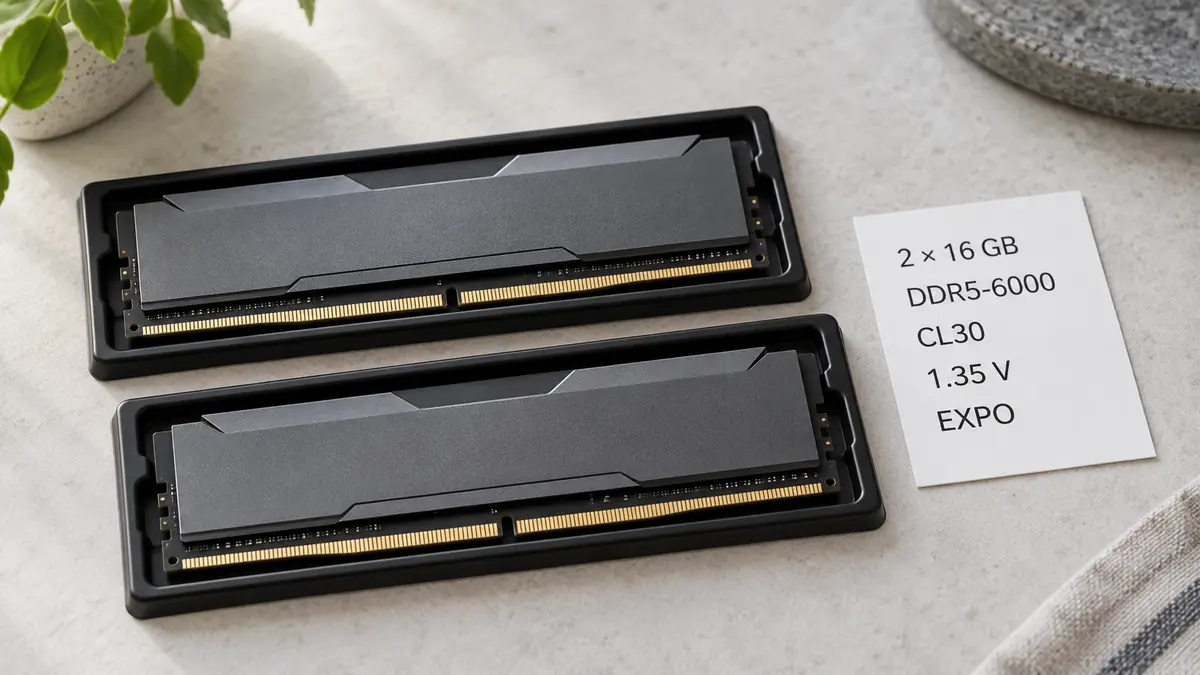
Consider a hypothetical listing: “32 GB, 2 × 16 GB, DDR5-6000, CL30, 1.35 V, EXPO.” It describes two modules totalling 32 GB, with the stated speed, timing and voltage associated with the specified profile. It does not establish support for your motherboard, guarantee that 6,000 MT/s will be selected automatically, or tell you whether the heatspreaders fit beneath your cooler.
Reading the complete description this way is more useful than treating “6000” as the product’s entire identity.
Adding to existing memory—or starting again
Adding another module can look like the cheapest upgrade, especially when the computer has empty slots. However, matching the printed capacity and speed does not guarantee that separately purchased memory will operate together as intended.
Manufacturers validate memory sold as a kit together. Combining separate kits, even with similar specifications, can introduce compatibility or stability problems. Corsair specifically advises against combining its kits because the rated performance is validated for the modules supplied together, not arbitrary combinations purchased separately.
This does not mean every mixed configuration fails. It means the result requires verification rather than assumption. Adding a carefully matched module to a basic office desktop may be worth investigating; combining two high-speed kits is a less straightforward way to preserve their advertised performance.
Compare the complete upgrade cost in MDL. For a hypothetical computer currently using two 8 GB modules, replacing them with one validated 32 GB kit may be preferable to adding another pair and troubleshooting the combination. Ask the seller to confirm the exact part number, whether the modules form one factory kit, and the applicable return and warranty arrangements.
Check the physical fit and specialist memory types
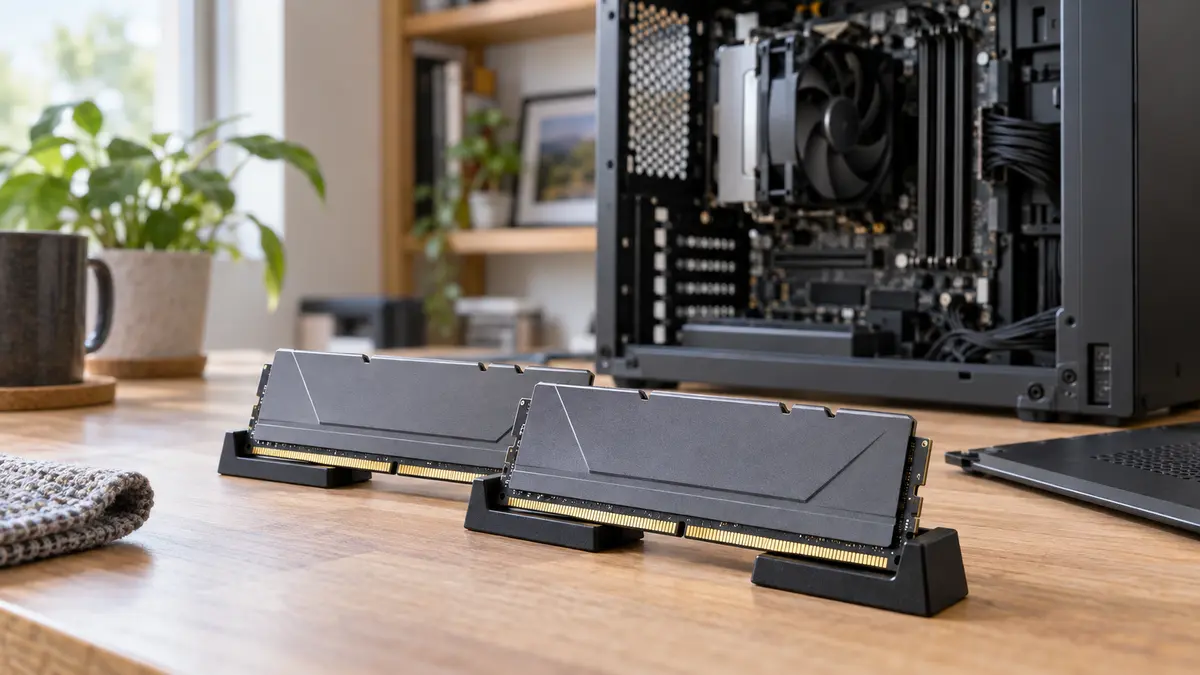
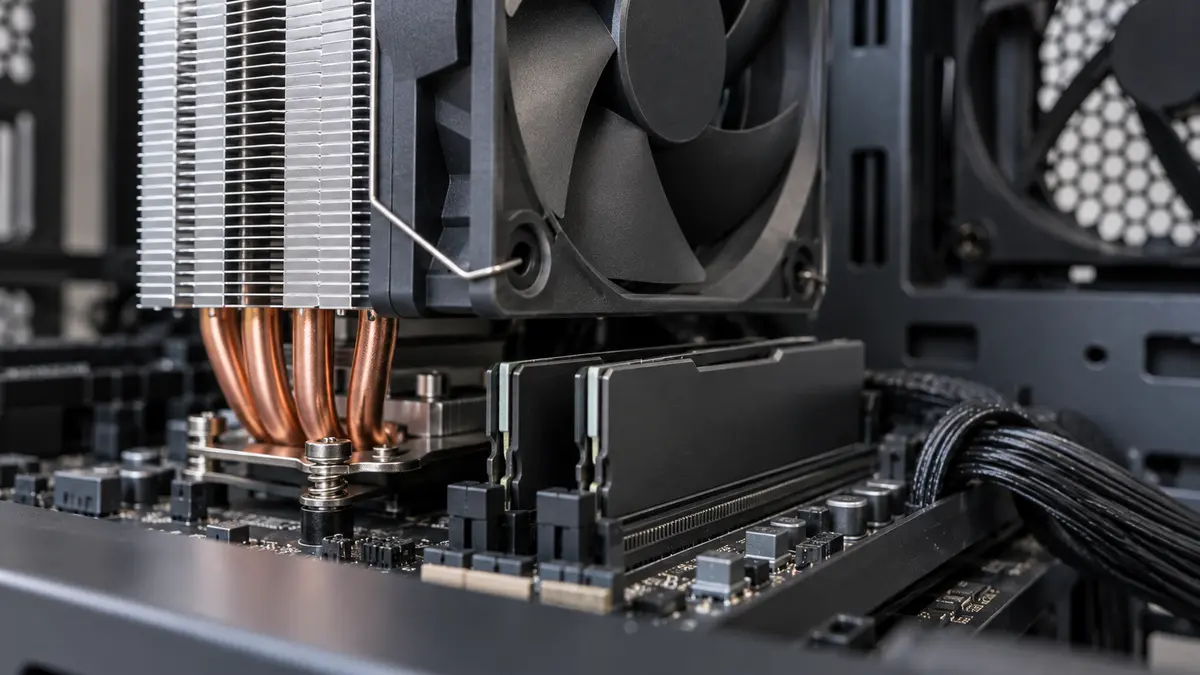
Memory can be electrically compatible yet physically awkward. Tall heatspreaders and lighting bars may interfere with a processor cooler that extends over the memory slots. Check module height in millimetres against the cooler’s clearance. Raising a cooler fan can sometimes create space above the RAM, but it also increases the cooler’s overall height and may prevent the case from closing.
Treat lighting as a preference, not evidence of better memory performance. After settling the technical requirements, choose a design you enjoy, but do not let appearance obscure a clearance problem.
Some listings require an additional compatibility check. CUDIMMs are DDR5 modules with an added clock driver that helps maintain signal timing. They share the physical socket format of ordinary DDR5 UDIMMs, but support depends on the platform and firmware. Buy them because your system explicitly supports the intended configuration, not merely because they fit.
ECC memory is another distinct consideration. System-level error-correcting memory requires suitable processor, motherboard and module support. DDR5’s built-in on-die error correction operates within its memory chips and is not equivalent to protection across the connection to the processor. Registered modules, called RDIMMs, are also not a drop-in substitute for ordinary desktop UDIMMs. A low-priced server-memory listing needs careful compatibility checking before it becomes a bargain.
Installing RAM is only half the job
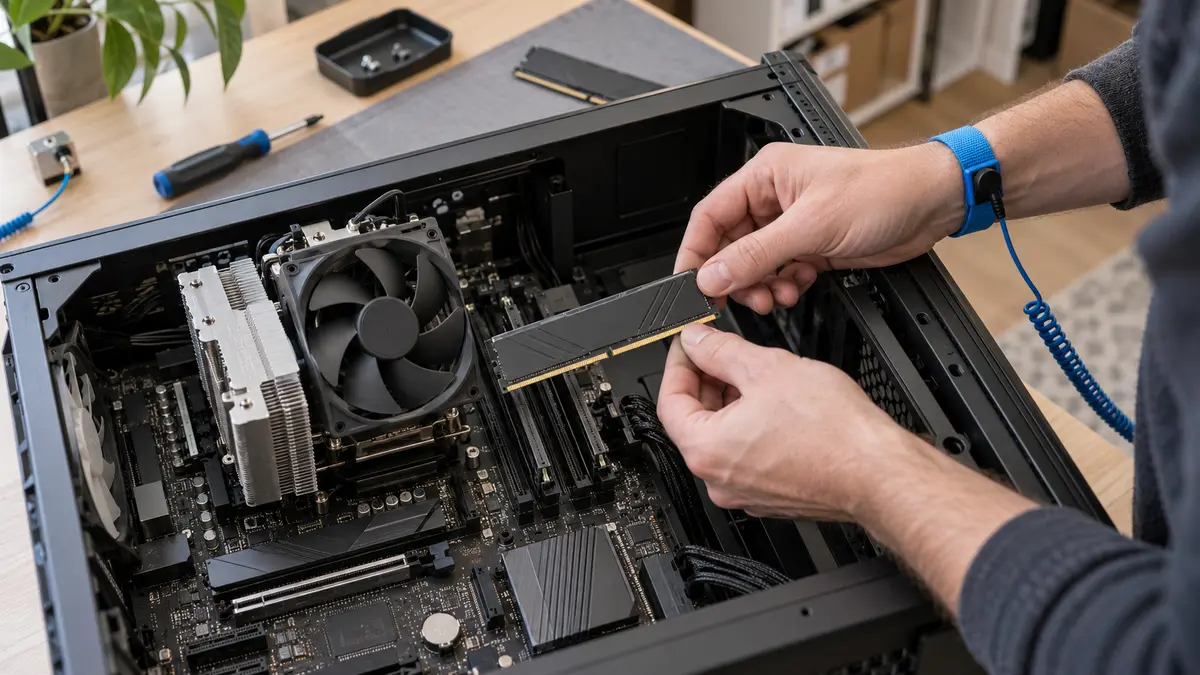
Follow the computer or motherboard manufacturer’s installation instructions. Shut the computer down and disconnect it from mains power before opening the case. Take appropriate antistatic precautions and handle modules by their edges, avoiding the electrical contacts. Align the connector notch with the socket key, then seat the module evenly until the retaining mechanism secures it. Never force a module whose notch does not align.
After changing memory, the first start may take longer, particularly with DDR5. The system can perform memory training, during which it establishes suitable communication settings. Allow the manufacturer’s documented training process to finish rather than repeatedly interrupting it. If the machine remains unable to start, follow the board’s troubleshooting guidance and diagnostic indicators.
Once the computer starts, confirm that the expected capacity is recognised and check the actual operating speed. Starting successfully is not the same as demonstrating stability. Run an appropriate memory diagnostic, such as MemTest86, and then repeat the work you normally perform.
Errors need investigation rather than acceptance. Return memory overclocking to standard settings as part of troubleshooting before assuming the module itself is defective. Memory-test failures can arise from the modules, their configuration or other parts of the memory system; they do not always identify one faulty stick automatically.
Make the upgrade solve a real problem
The right RAM purchase should make sense for both your workload and the computer that will use it. An older desktop short of working memory may benefit more from an appropriate capacity upgrade than from an attempt to rebuild everything around a newer memory generation. A new gaming or creative system deserves a balanced allocation of money rather than the most expensive memory kit by default.
When browsing RAM memory on IVO, compare complete specifications and exact part numbers alongside the price. Think about the applications you keep open, the configuration your motherboard supports and how much setup you are comfortable doing.
Well-chosen RAM should become an unremarkable part of the computer: enough working space, compatible hardware and stable operation, without requiring you to think about the memory every time you sit down.