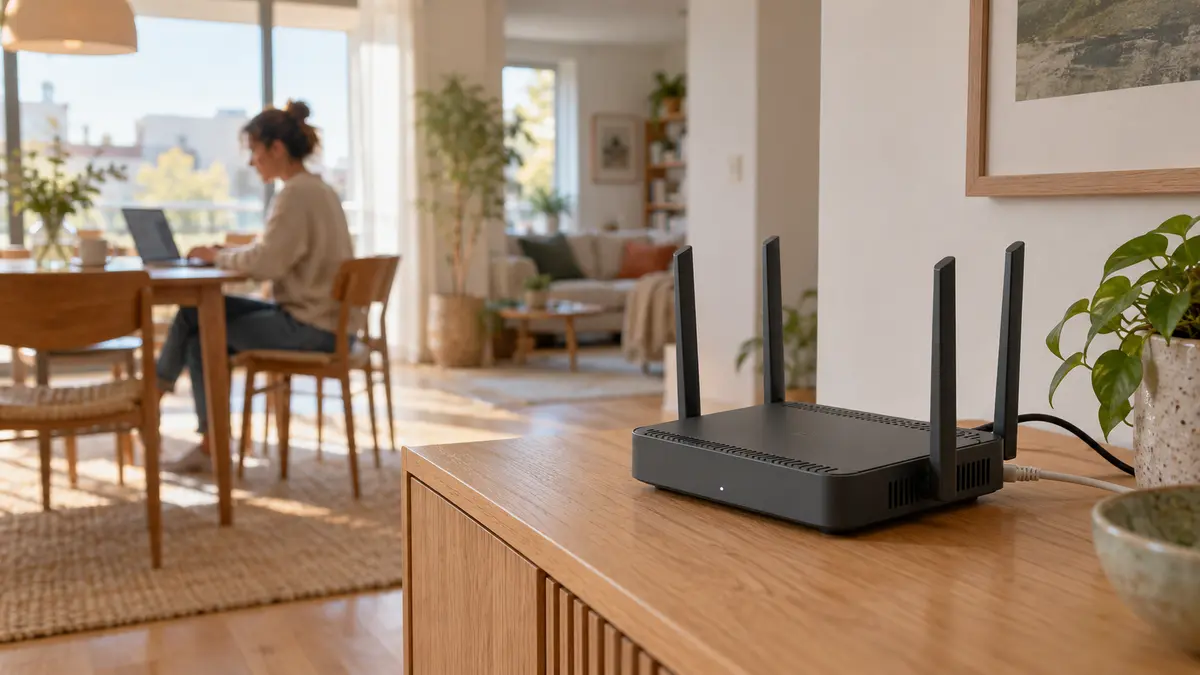
These frustrations can have different causes. A faster internet package will not remove a thick wall, and a router with eight antennas cannot give an older phone a newer wireless radio. Choosing a Wi-Fi router becomes easier once you understand which part of the connection needs improving.
The useful questions concern your home, your devices and the equipment already installed. Wi-Fi 6, Wi-Fi 7 and mesh systems offer different possibilities, but their value depends on how those pieces fit together.

Start with the connection coming into your home
Your internet provider brings a connection to the property. The router shares it between your devices, while Wi-Fi carries data wirelessly between the router and those devices. A problem anywhere along that route can feel like “bad Wi-Fi”.
Before buying, compare performance beside the existing router with performance in the troublesome room, using the same device. If possible, also test a computer connected to the router by Ethernet cable, with Wi-Fi disabled and large downloads paused. The computer’s network connection must be fast enough for your broadband package. Good wired performance and poor wireless performance suggest a Wi-Fi issue; poor results through both warrant checking the service, cables and existing equipment first.
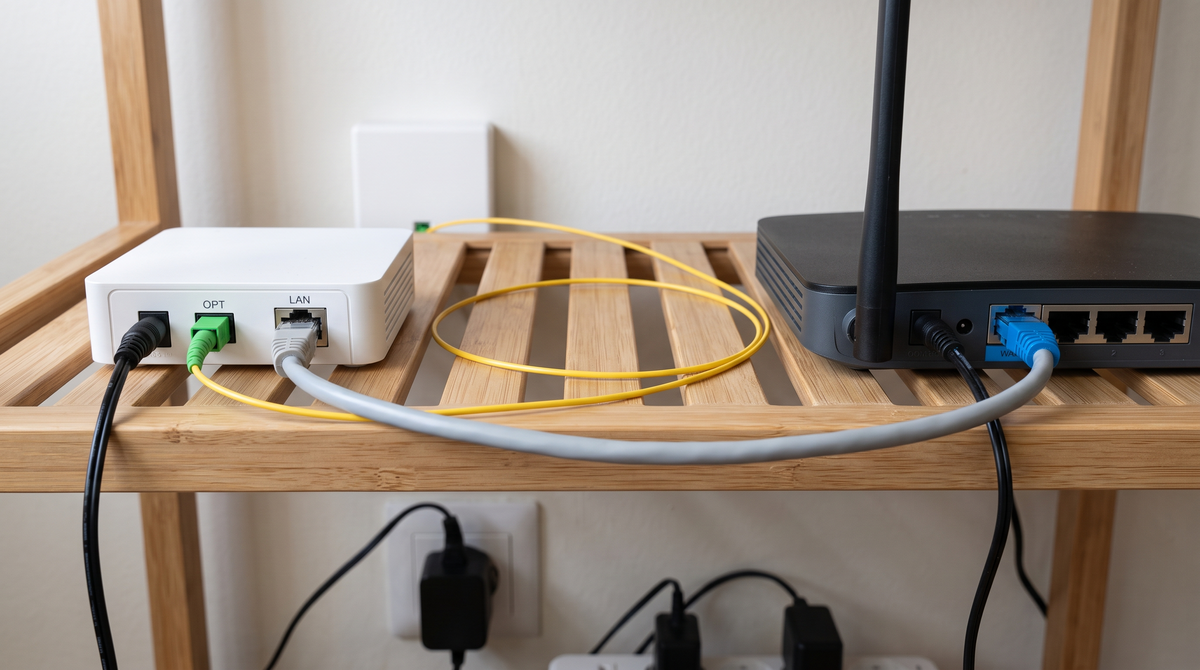
Next, establish what the replacement must connect to. Fibre installations often include an optical network terminal, or ONT, which converts the fibre connection into Ethernet. A conventional Ethernet router normally connects to that terminal; it does not replace it. A telephone-line connection needs a suitable DSL modem, while internet supplied through a SIM requires a compatible mobile broadband modem or router. The “5 GHz” written on a Wi-Fi router does not mean it connects to a 5G mobile network.
Ask your provider whether a third-party router needs a username and password for a connection type called PPPoE, or VLAN settings that identify the provider’s services. Check any bundled television or telephone service too. When the provider’s box already handles routing, a new router or mesh system with access point mode can supply Wi-Fi while that box continues managing the internet connection. Running both as routers can create double NAT, two layers of address translation that may complicate some games and remote connections. Access point support and available features vary by model.
Coverage starts with the room layout
A router’s advertised coverage area is only a guide. Two flats of 70 m² can behave very differently if one has open rooms and the other has a long corridor divided by reinforced concrete. Floors, dense walls, metal objects and the position of the internet entry point all influence the result.
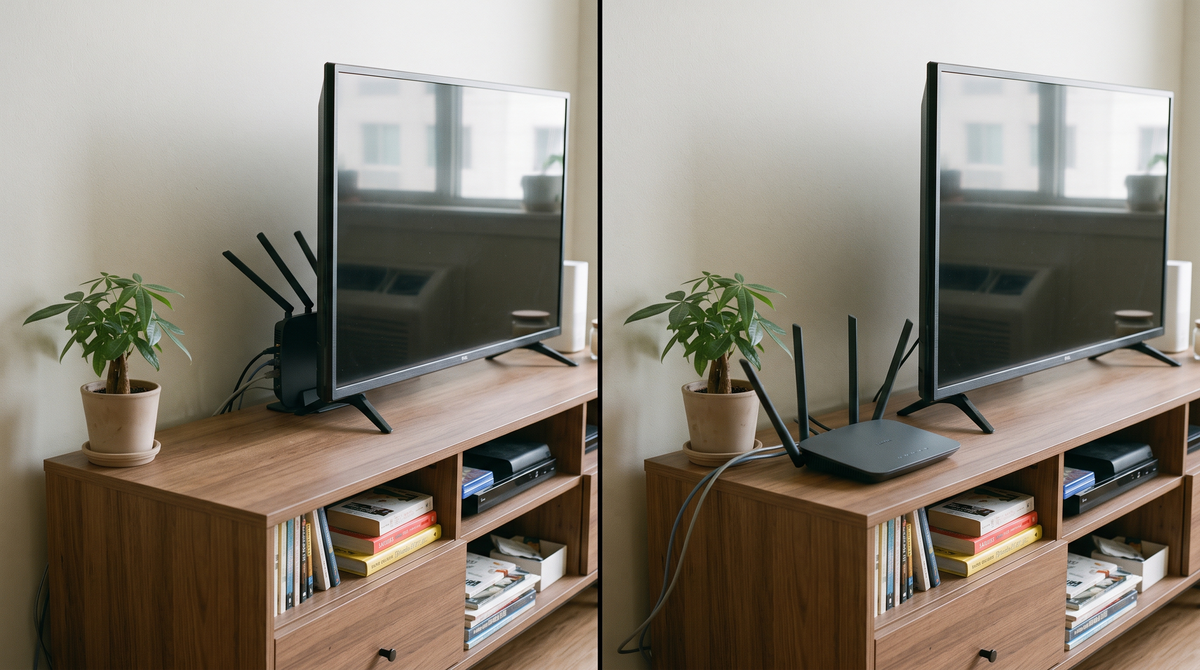
Start with an open position near the centre of the area you use, raised above floor level and with ventilation around the casing. Avoid hiding the router behind a television, inside a metal cabinet or beneath other electronics. An Ethernet extension from the provider’s equipment may make a better position possible without moving the fibre terminal.
More external antennas do not provide a dependable ranking of coverage. Antenna design and placement matter, and the phone or laptop must also send a signal back. A stronger-looking router at one end of a difficult home may achieve less than an additional access point closer to the rooms that need it.
Understanding 2.4 GHz, 5 GHz and 6 GHz
These numbers describe radio frequency bands, measured in gigahertz (GHz). They are separate from the numbered Wi-Fi generations, although the two are connected.
The 2.4 GHz band generally travels further and copes better with obstacles than higher-frequency bands, but it is often crowded. Neighbouring networks and other equipment share that space. It remains useful for distant devices and smart-home products that support only 2.4 GHz, even when your main laptop uses something faster.
For many homes, 5 GHz provides a practical balance of speed and usable coverage. It offers more scope for fast connections than a crowded 2.4 GHz network, although performance can fall across several walls. Where supported, 6 GHz adds spectrum that older 2.4 GHz and 5 GHz-only devices cannot use. This can help compatible equipment find a less congested connection near a router or mesh unit; it is not a way to extend coverage through the whole building.
Moldova permits Wi-Fi operation in the lower 6 GHz range, subject to equipment and technical conditions. Check the exact model’s regional version and locally enabled features, because specifications from another country may describe a different channel range.
“Dual-band” usually means 2.4 GHz and 5 GHz. “Tri-band” needs a closer look: it can mean those bands plus 6 GHz, or 2.4 GHz plus two separate 5 GHz radios. The extra radio’s role matters particularly in mesh systems.
Wi-Fi 6, Wi-Fi 6E and Wi-Fi 7 in everyday use
A Wi-Fi generation describes the wireless technology supported. A newer router can generally serve older devices on compatible bands and security settings, but those devices retain their own limits. An older laptop does not acquire Wi-Fi 7 capabilities by joining a Wi-Fi 7 network.
For a new purchase, a well-supported dual-band Wi-Fi 6 router is a sensible starting point for many households. Wi-Fi 6 improves how compatible equipment shares busy wireless networks. Its advantages are useful when several devices are active, although implementation and conditions affect the result.
The main distinctions are easier to compare together:
Generation | What the label tells you | When it is worth considering |
|---|---|---|
Wi-Fi 5 | Uses 5 GHz for Wi-Fi 5; typical dual-band routers also provide older-standard Wi-Fi on 2.4 GHz. | An existing model may remain adequate if coverage, performance and security support are satisfactory. |
Wi-Fi 6 | Uses newer wireless technology on 2.4 GHz and 5 GHz. | A practical starting point for a new general-purpose home router. |
Wi-Fi 6E | Extends Wi-Fi 6 technology into 6 GHz. | Compatible devices can benefit from additional spectrum within useful range. |
Wi-Fi 7 | Adds further capabilities; models may include two bands or three. | Newer devices, demanding local transfers and suitable faster ports make the upgrade more useful. |
Wi-Fi 7 does not automatically include 6 GHz. Some models operate only on 2.4 GHz and 5 GHz. If 6 GHz is a reason for upgrading, look for it explicitly in the specifications.
One Wi-Fi 7 feature is Multi-Link Operation, or MLO, which gives compatible equipment multiple wireless links to work with. Depending on implementation, that can improve throughput, responsiveness or reliability. Both ends need suitable support, including the device’s software; it does not mean every phone receives the combined speed of every radio.
A Wi-Fi 7 router can be an attractive choice if its useful features justify the price difference. Buying the label alone makes less sense when the household’s main problem is a weak signal behind two concrete walls.
Reading the speed on the box
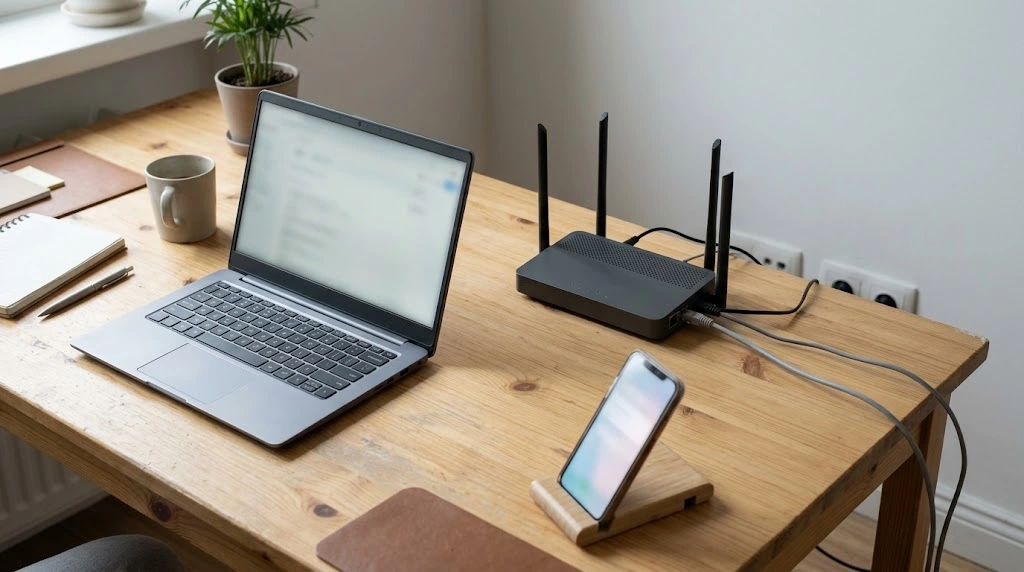
Labels such as AX3000 and BE3600 describe wireless performance classes. They are not promises of download speed to one device. AX commonly identifies Wi-Fi 6 technology and BE Wi-Fi 7; the number typically combines advertised maximum radio rates.
For example, an AX3000 specification may add 574 Mbps on 2.4 GHz to 2,402 Mbps on 5 GHz, then round the total. Mbps means megabits per second. A normal Wi-Fi 6 connection uses one band at a time. It does not combine those figures into a 3,000 Mbps connection to your laptop.
Even the individual radio figure is a theoretical link rate rather than the rate at which a file downloads. Wireless communication needs time for coordination and acknowledgements, and performance changes with signal quality, interference and competing traffic. The device also has its own limits, including how many parallel data streams its radio supports.
Channel width is another part of the figure. Measured in megahertz (MHz), it describes how much radio spectrum a connection occupies. Wider channels can carry more data under suitable conditions, but require more clear spectrum and matching device support. A laptop limited to 80 MHz cannot use a router’s full 160 MHz capability. Wi-Fi 7’s 320 MHz option requires suitable 6 GHz equipment and permitted spectrum.
In a crowded block of flats, forcing the widest setting can disappoint. Automatic channel selection is a reasonable starting point; 20 MHz is generally appropriate for 2.4 GHz, where congestion is particularly common. A steady connection in the rooms you use matters more than briefly reaching a headline figure beside the router.
Check the ports before paying for faster Wi-Fi
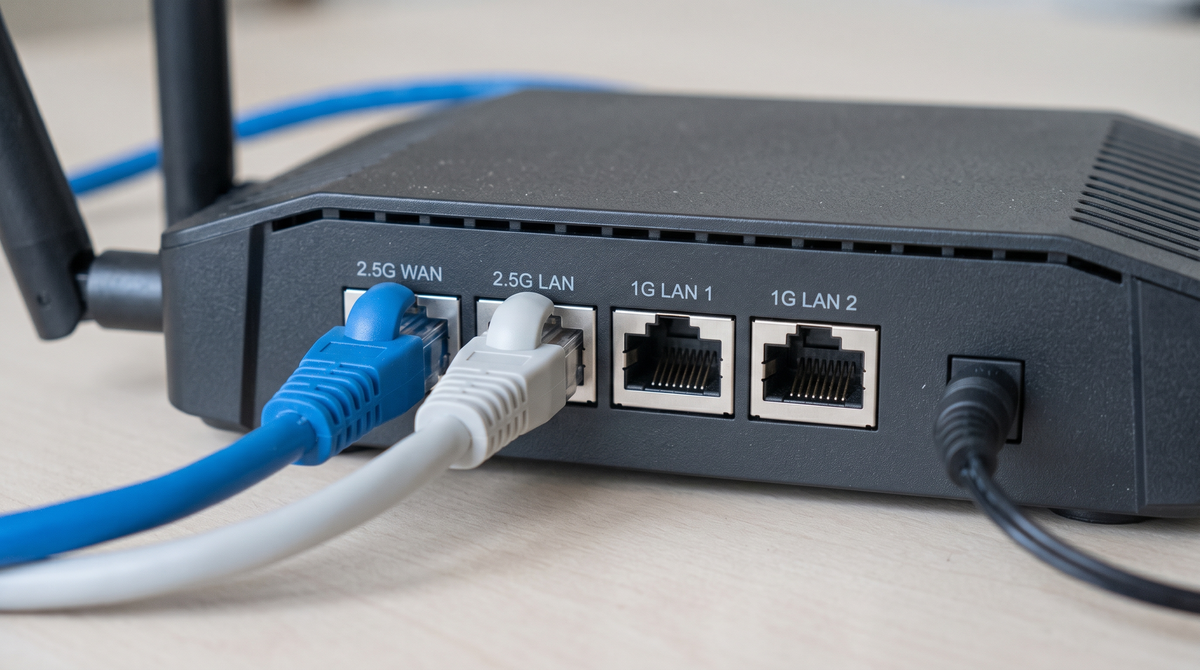
The WAN port normally receives the internet connection; LAN ports connect equipment inside your home. Their speeds can limit performance even when the wireless specification looks impressive.
For broadband faster than 100 Mbps, avoid making a 100 Mbps Ethernet port the bottleneck. Gigabit ports, rated at 1 Gbps or 1,000 Mbps, are a sensible baseline for many homes. Actual usable throughput is lower than the port’s nominal rate because network communication has overheads.
For a wired computer to receive more than 1 Gbps from the internet, the entire route must support it: the package, provider equipment, router’s WAN and LAN ports, any intervening switch, cable connection and computer adapter. A router with one 2.5 Gbps WAN port and only gigabit LAN ports still limits each directly connected wired computer to a gigabit link. Check stated routing performance as well as port speed, especially if you intend to enable extra traffic-management features.
Faster local networking can also help with transfers to a network storage drive, even on slower broadband. Count ports as well as checking their speed: a television, desktop and mesh connection can quickly occupy a small router. Read whether a multi-gigabit port can serve as WAN or LAN, and how many suitable ports remain for your intended arrangement.
One router, a mesh system or a wired access point
If a sensibly positioned router reaches all the important rooms, adding more units may bring little benefit. A long flat, two-storey house or awkwardly placed internet connection can make a distributed system more useful.
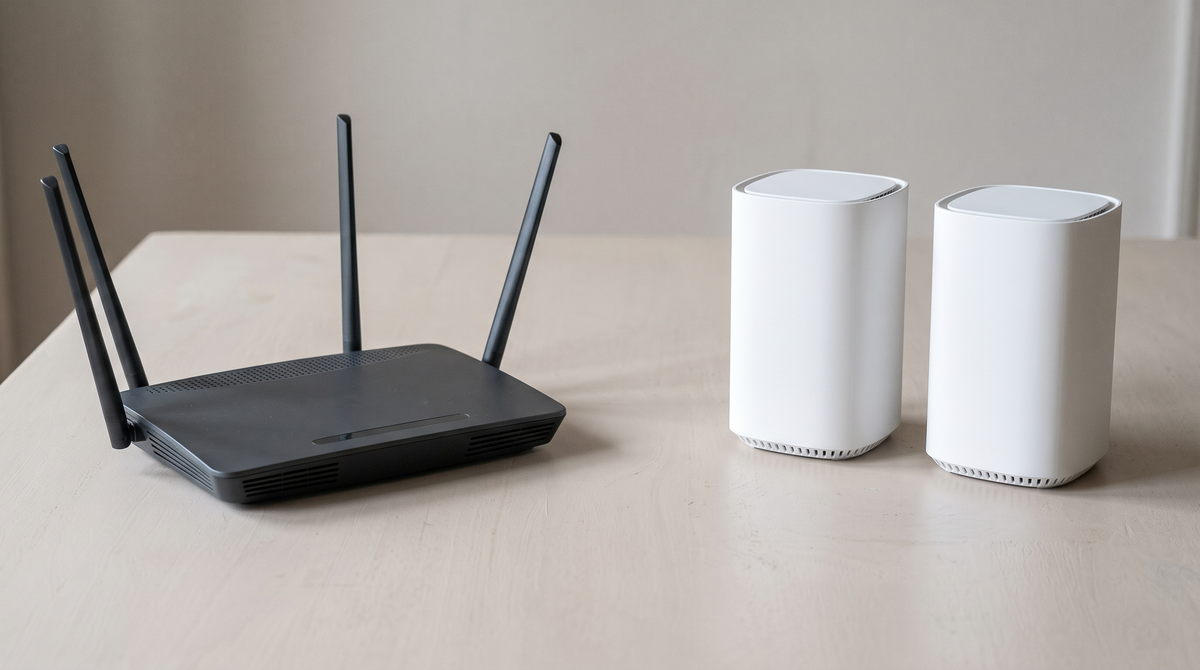
A mesh system uses coordinated units to spread Wi-Fi around the home, usually under one network name. The main unit connects to your existing internet equipment, while additional units provide coverage elsewhere. Mesh can simplify management and help devices move between units, although the device also influences when it changes connection.
A wired access point offers another route: an Ethernet cable carries the network to another room, where the access point provides Wi-Fi. Many mesh systems can also use Ethernet between their units, so wired access points and mesh are not entirely separate categories.
These arrangements suit different circumstances:
Arrangement | Where it fits | Main consideration |
|---|---|---|
One router | A home it can cover from a useful central position. | Walls and placement can leave distant rooms underserved. |
Mesh with wireless links | Several rooms need coverage and running cable is difficult. | Each additional unit needs a good connection back towards the main unit. |
Wired access points or wired mesh | Thick walls, multiple floors or existing Ethernet cabling. | Requires a suitable cable route and compatible equipment. |
A simple wireless extender | A modest, isolated coverage problem. | Placement and shared wireless capacity can limit performance. |
A basic extender receives and retransmits traffic, often sharing radio time between those jobs. It may be sufficient for occasional use in one room, but can disappoint when expected to support demanding activity throughout a house. Avoid treating every extender or mesh design as identical.
Check expansion compatibility before buying. Products from different mesh families may not form one coordinated system, even when they share a manufacturer. Confirm the exact models and required software rather than relying on the word “mesh”.
The connection between mesh units matters
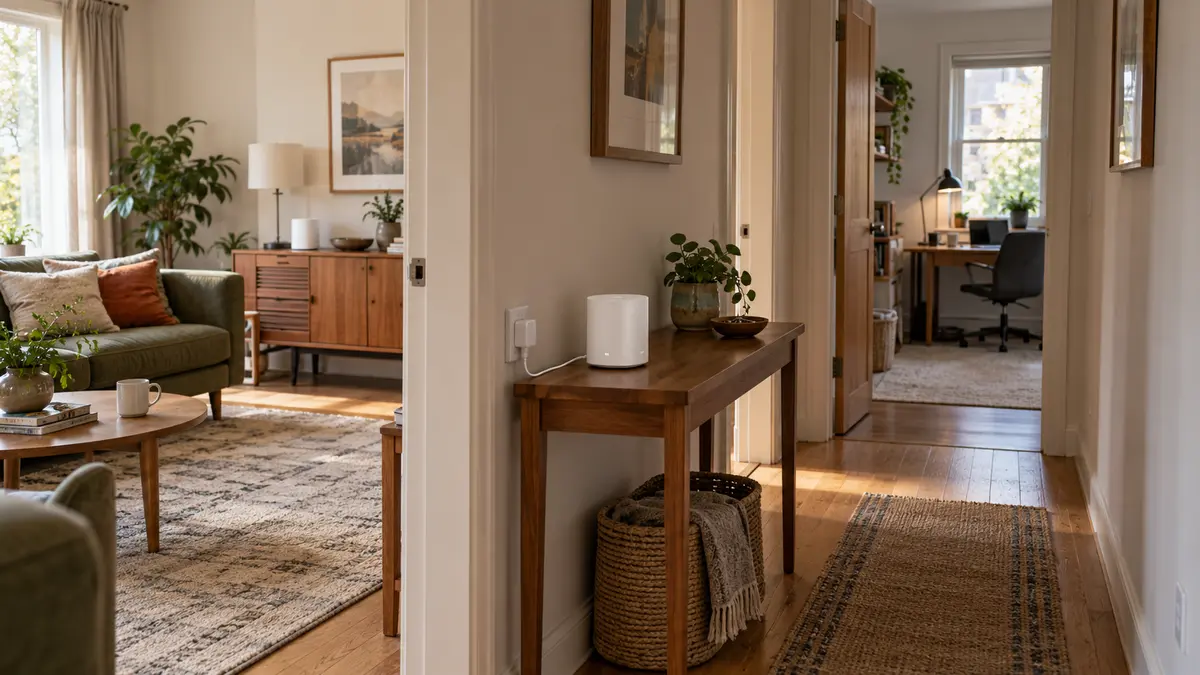
The link carrying traffic between mesh units is called backhaul. A strong signal from a bedroom unit to your phone achieves little if that unit has a poor connection to the rest of the network.
Place a wireless satellite where it can still receive a good signal from an upstream unit, somewhere along the route towards the troublesome room. Putting it deep inside the existing dead zone can simply repeat the problem. Use the system’s placement guidance and connection-quality indicator, then check performance where you actually sit. More units are not automatically better; unnecessary units can add interference and complexity.
A dedicated wireless backhaul radio can reduce competition with your devices, but “tri-band” alone does not guarantee that arrangement. Check how the model uses its radios. Ethernet backhaul is often a particularly worthwhile improvement across a concrete floor or dense walls, since the inter-unit traffic travels by cable.
Also check what a cable actually connects. Wiring a desktop to a satellite removes the wireless link between those two devices, but the satellite may still reach the main router wirelessly. A fully wired route needs a wired backhaul too.
Stable calls and games need more than download speed
A game can feel unresponsive while a speed test reports a large number. Download capacity and latency describe different things: capacity is how much data can move, while latency is the delay as it travels. Uneven delay and lost data can also interrupt calls.
When someone uploads a large backup or starts a heavy download, competing traffic can fill queues. Quality of Service, or QoS, allows some routers to prioritise selected devices or activities. Effective traffic management can make a busy connection more comfortable, but it does not increase the broadband package or eliminate delays elsewhere on the internet. Check what the feature actually controls, rather than assuming a “gaming” label guarantees a lower ping.
An Ethernet connection is worth considering for a fixed work computer or games console. It removes local wireless interference from that link and leaves more wireless capacity for devices that move around. Meanwhile, a long list of connected smart bulbs is not equivalent to several people uploading video: what devices do matters more than the advertised device count.
[Photo 8: A tidy home-office desk with a powered mesh unit connected to an Ethernet wall socket and a laptop connected to the unit by a second Ethernet cable, illustrating a wired backhaul and wired device connection.]
Software support is part of the purchase
A router may stay in service through several phone upgrades. Check the manufacturer’s security-update policy and support information for the exact model and hardware version. Automatic firmware updates are useful; firmware is the software that runs the router. An attractive specification is less reassuring when support is already ending.
Look for WPA3-Personal, a modern Wi-Fi security standard. On 2.4 GHz and 5 GHz, WPA2/WPA3 transitional mode can accommodate older devices; some legacy equipment may need WPA2 with AES encryption. Password-protected home networks on 6 GHz use WPA3. Avoid obsolete WEP or original WPA security. Use strong, distinct passwords for Wi-Fi access and router administration, and leave internet-facing remote administration disabled unless you need it.
A guest network can give visitors internet access while keeping household devices separate, provided its isolation settings support that. With smart-home networks, check whether separation affects phone control or casting to a television. Also establish whether setup requires an account, which settings remain available locally, and whether parental controls or additional security features require a subscription.
Bringing the choice back to your home
Consider a hypothetical 70 m² flat with a 500 Mbps connection, Wi-Fi 6 laptops and a usable central router position. An AX3000 dual-band router with gigabit ports, suitable provider compatibility and continuing security support could be a sensible starting point. Its appeal comes from matching the household’s needs; neither the floor area nor the AX3000 label guarantees coverage.
Now imagine a two-storey home with the fibre terminal downstairs and a study above a concrete floor. Two well-positioned units, preferably linked by Ethernet, may be a more useful investment than one expensive router left at the entrance. If newer devices and demanding transfers justify Wi-Fi 7, assess its bands, ports and supported features within that layout.
You can explore Wi-Fi routers and mesh Wi-Fi systems on IVO with those requirements in mind. Start with where the connection must work, then compare the equipment that can serve those rooms. The right purchase should make everyday use dependable without paying for capabilities your home and devices cannot benefit from.