Then you start looking for a replacement. One laptop advertises a powerful processor, another promises impressive battery life, and a third has twice as much storage. Understanding how to choose a laptop means working out which of those differences will actually improve your day.
The most satisfying purchase is usually a balanced one: enough performance for your applications, a screen you enjoy using, and a size that suits where you work. Buying more power than you need can be less useful than spending the same money on better everyday comfort.

Start with your applications, not the processor badge
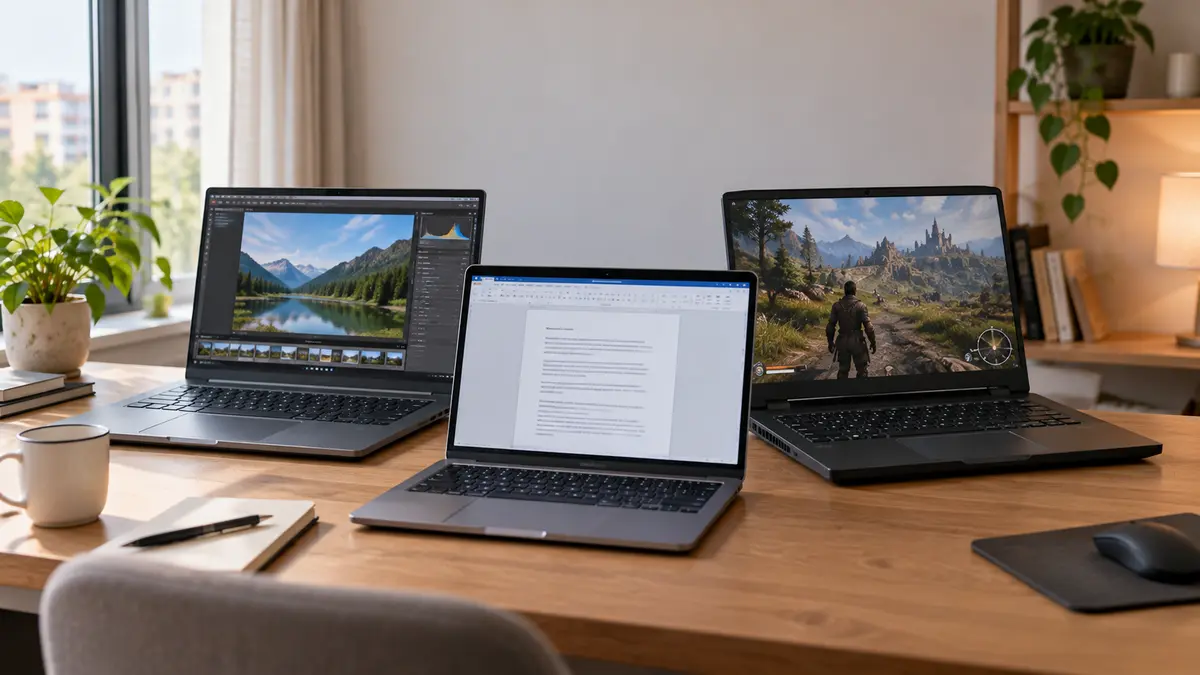
Think about an ordinary week rather than the most demanding task you might attempt someday. Writing documents, studying online, managing household finances and watching films call for a different balance from editing video, designing buildings or playing demanding games.
“Work laptop” is not a precise specification. Someone answering emails and preparing presentations may value portability and a clear webcam. An engineer using specialised design software may need particular graphics hardware and considerably more memory. Likewise, a student studying literature and one studying animation can have very different requirements.
Before comparing hardware, establish which operating system your essential software supports. Windows, macOS and ChromeOS are not interchangeable simply because all three can open a browser. Check the actual application, its required features and any necessary plug-ins. A browser-based version may not offer everything available in a desktop edition.
A Chromebook deserves consideration when your activities centre on compatible web applications, but confirm what works offline and check the model’s automatic-update end date. For Linux, verify support for the particular laptop’s wireless hardware, webcam, power management and other functions rather than assuming everything will work equally well.
There is also an important distinction within Windows laptops. Models using Arm processors, including Qualcomm Snapdragon designs, can run native Arm applications and many conventional Windows applications through emulation. However, some software, games and accessories have compatibility limitations. Drivers—the software that lets Windows communicate with hardware—need appropriate Arm support.
That makes compatibility especially important when you depend on an older printer, a specialist accounting package, a company VPN or particular games. Check those requirements first. An efficient, attractive computer is not a good purchase when an essential part of your routine cannot run properly.
Choose a size you will be comfortable carrying
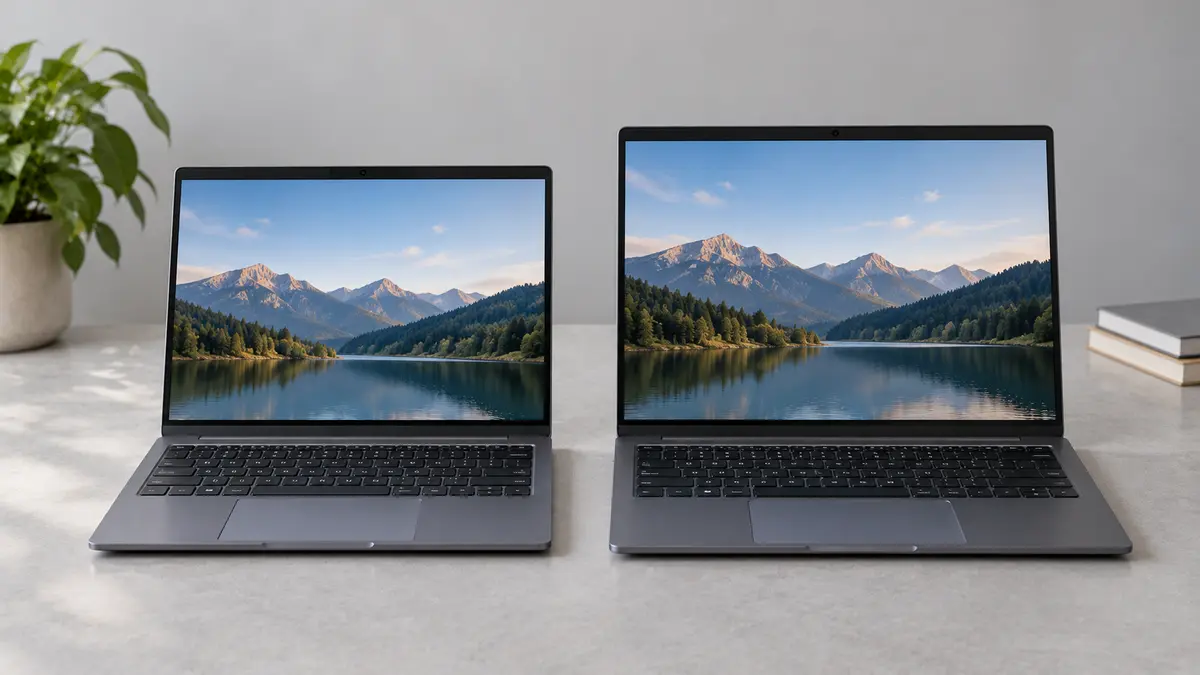
Screen sizes are measured diagonally. A 14-inch display is approximately 35.6 cm across the diagonal; a 16-inch display is about 40.6 cm. Those few centimetres can make a noticeable difference when you are comparing documents, but also when you are fitting the computer into a bag.
For frequent travel between home, work and university, a 13- or 14-inch laptop is a useful starting point. Around 1.2–1.5 kg is a reasonable portability target, not a rule: some people happily carry more, while others notice every additional gram.
A 15- or 16-inch model often makes more sense when the laptop is your main screen. Larger models can provide a more comfortable workspace for spreadsheets and side-by-side windows. However, check the actual dimensions and weight, because screen size alone does not tell you how bulky the machine will be.
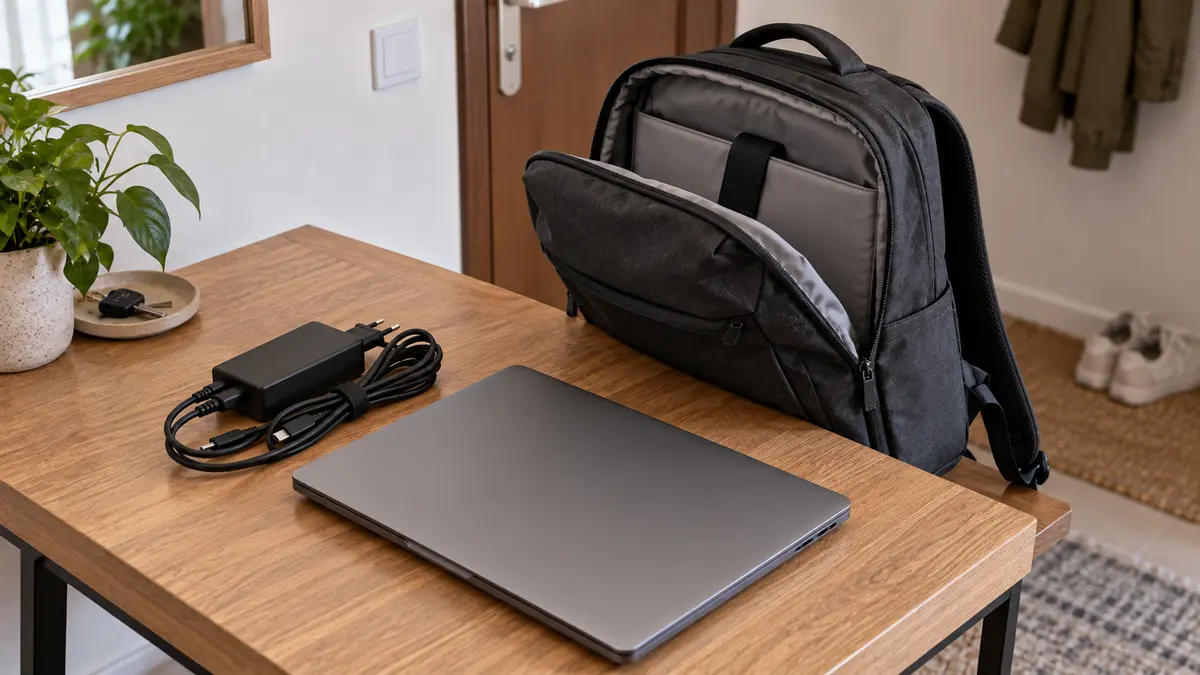
Include the charger in that comparison. A lightweight laptop with a compact adapter is a different travelling companion from a powerful machine with a large charging brick.
A convertible laptop with a folding hinge can be useful for handwritten notes or drawing. But a touchscreen does not automatically mean support for a pressure-sensitive pen, and the pen may be sold separately. Choose this format because you will use those functions, not because it appears more versatile in photographs.
Give the screen more attention than its resolution
You look at the display whenever you use the laptop, yet it is easy to overlook while comparing processors and storage.
Resolution describes the number of pixels used to create the picture. Full HD, or 1920 × 1080 pixels, is a sensible starting point for many everyday tasks. A 1920 × 1200 display adds vertical pixels and commonly uses a taller 16:10 shape, which is useful for documents and web pages.
Higher resolutions can make text and photographs look finer, but they are not automatically a better investment. On a compact screen, you will probably enlarge interface elements through display scaling anyway. Consider the quality of the whole panel rather than treating a “3K” or “4K” label as a complete recommendation.
Brightness matters when you work near a window. It is commonly expressed in nits, a measure of how much light the screen produces. As practical shopping guidance, around 300 nits can be adequate indoors, while 400 nits or more provides useful flexibility in brighter surroundings. Neither figure guarantees comfortable use in direct sunlight.
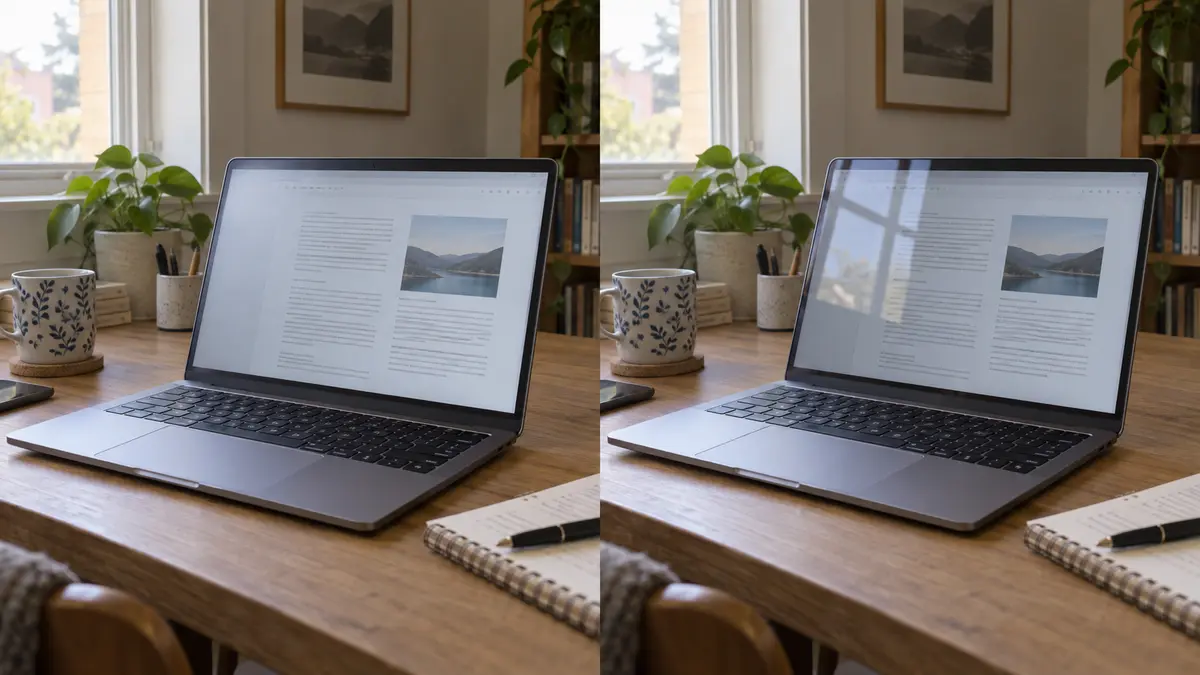
The surface finish matters too. A matte coating spreads reflections, while a glossy screen can show more distinct reflections of windows and lamps. Compare the finish under lighting similar to your own workspace.
Panel technology adds another layer. IPS is a type of liquid-crystal display, usually chosen for its wide viewing angles. OLED panels produce light at individual pixels, allowing very deep blacks and strong contrast. That can be particularly appealing for films and photographs.
However, neither label guarantees accurate colours, comfortable brightness or good battery life. OLED also requires some care with prolonged static content, particularly at high brightness, because uneven pixel wear can cause permanent image retention known as burn-in. Follow the manufacturer’s protective settings rather than assuming every OLED panel behaves identically.
For photo editing and design, look for approximately full sRGB coverage—the ability to reproduce a commonly used range of colours—and evidence of colour accuracy. Wide colour coverage and accurate colour reproduction are related, but not the same thing.
Finally, refresh rate describes how often the display updates each second. A 120 Hz screen can make scrolling and motion look smoother than a 60 Hz screen. It does not make the processor faster, and demanding games still need sufficient graphics performance to take advantage of it.
Read processor names as a starting point, not a verdict
The processor, or CPU, carries out the instructions behind your applications. A capable mid-range processor is often the sensible choice for everyday work, while more demanding tasks can justify additional performance.
Names such as Core i7 or Ryzen 7 do not tell the whole story. The complete model, its generation and its intended power range matter. A newer mid-range processor can outperform an older higher-tier model, and chips designed for thin laptops have different priorities from those intended for larger performance machines.
Clock speed, measured in gigahertz, is not a reliable ranking across unrelated processor designs. Core counts also need context: different cores and architectures do not necessarily do the same amount of work.
More importantly, you are buying a laptop, not a processor in isolation. Cooling, power settings and the manufacturer’s implementation influence how well performance is sustained. A short burst of speed when opening an application is different from maintaining performance during a lengthy video export.
Look for testing of the exact laptop configuration where possible, especially for demanding work. Do not assume a review of a similarly named model with a different processor describes the machine you are considering.
“AI PC” deserves the same careful treatment. An NPU, or neural processing unit, is specialised hardware for supported artificial-intelligence tasks. It can be useful when your software takes advantage of it, but its presence is not a general measure of laptop speed. A better screen or sufficient memory may make a much larger difference to your routine.
Buy enough memory, then choose storage around your files
Memory and storage perform different jobs.
RAM is the working space for active applications; storage holds your files and installed software. A laptop advertised with a 1 TB drive does not necessarily have enough RAM for comfortable multitasking.
For a new Windows or macOS laptop intended for mixed everyday use, 16 GB of RAM is a sensible buying target. An 8 GB configuration can still handle lighter tasks, but offers less room for a busy browser, a video meeting and several applications running together.
For heavier multitasking, large creative projects or virtual machines—software that runs additional computer environments—24 GB or 32 GB can be worthwhile. More memory does not automatically make every task faster; it mainly helps when your workload would otherwise run short.
Storage capacity is easier to relate to your habits. A 512 GB solid-state drive, or SSD, is a useful starting point for documents, applications and a moderate personal photo collection. Consider 1 TB when you keep large games, substantial media libraries or video projects locally. The operating system and installed software occupy part of that space.
These practical starting points help put the two specifications together:
Main use | Sensible RAM target | Useful SSD starting point |
|---|---|---|
Documents, study, browsing and video calls | 16 GB | 512 GB |
Photo editing and heavier multitasking | 24–32 GB | 512 GB–1 TB |
Gaming | 16–32 GB, guided by the games’ requirements | 1 TB |
Regular video editing, complex projects or several virtual machines | 32 GB or more | 1 TB or more |
These are buying guidelines, not universal requirements. A demanding application can need more, while a deliberately simple workload may need less.
An SSD is preferable to an older mechanical hard drive as the main system drive because it accesses data much more quickly. However, the highest advertised SSD transfer speed is rarely the most important difference for ordinary office work.
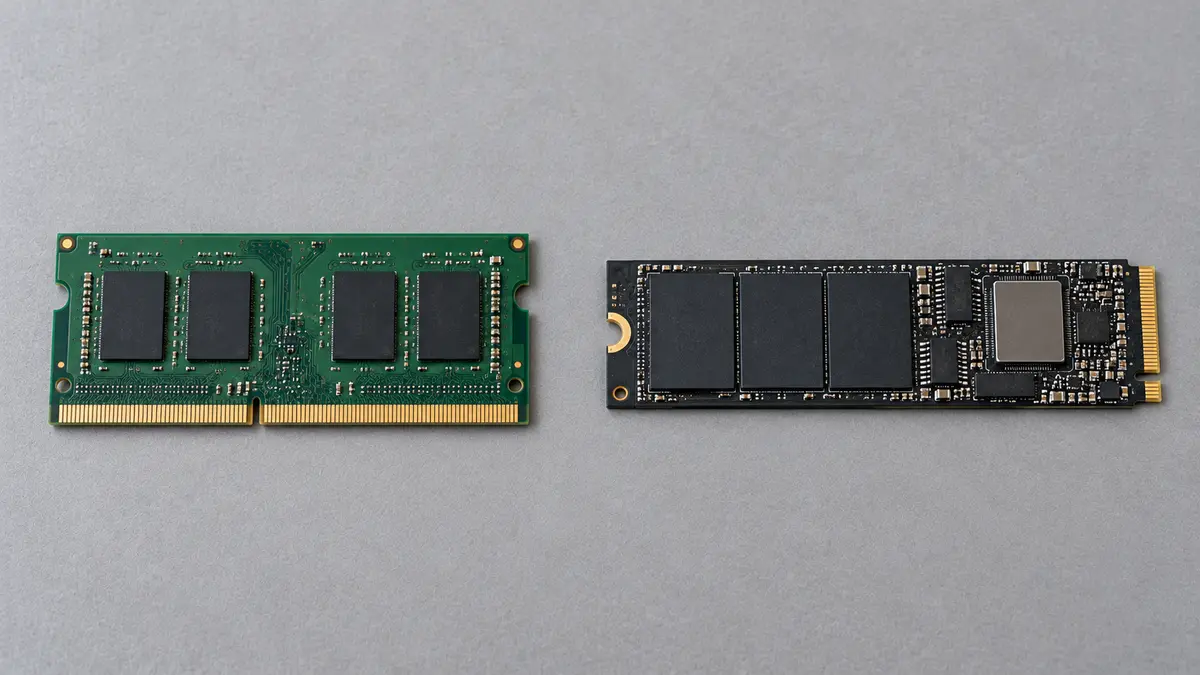
Check upgradeability before ordering. RAM may be soldered in place, fitted in replaceable modules, or use a mixture of both. Storage arrangements also vary. Consult the specifications or service documentation for the exact configuration; do not assume that memory or storage can be expanded simply because another laptop in the same family allows it.
Decide whether dedicated graphics will earn their place
Every laptop needs graphics hardware to produce an image. Integrated graphics are built into the main processor package and generally share system memory. Dedicated graphics use a separate graphics processor, or GPU, usually with their own video memory.
For documents, browsing, streaming and video calls, capable integrated graphics are normally sufficient. Some integrated designs also handle photo editing and lighter gaming well, although performance varies considerably between generations and models.
Dedicated graphics become more relevant for demanding games, substantial 3D work and creative applications that benefit from GPU acceleration. Check the requirements of the software you actually use rather than assuming that every creative task needs an expensive graphics chip.
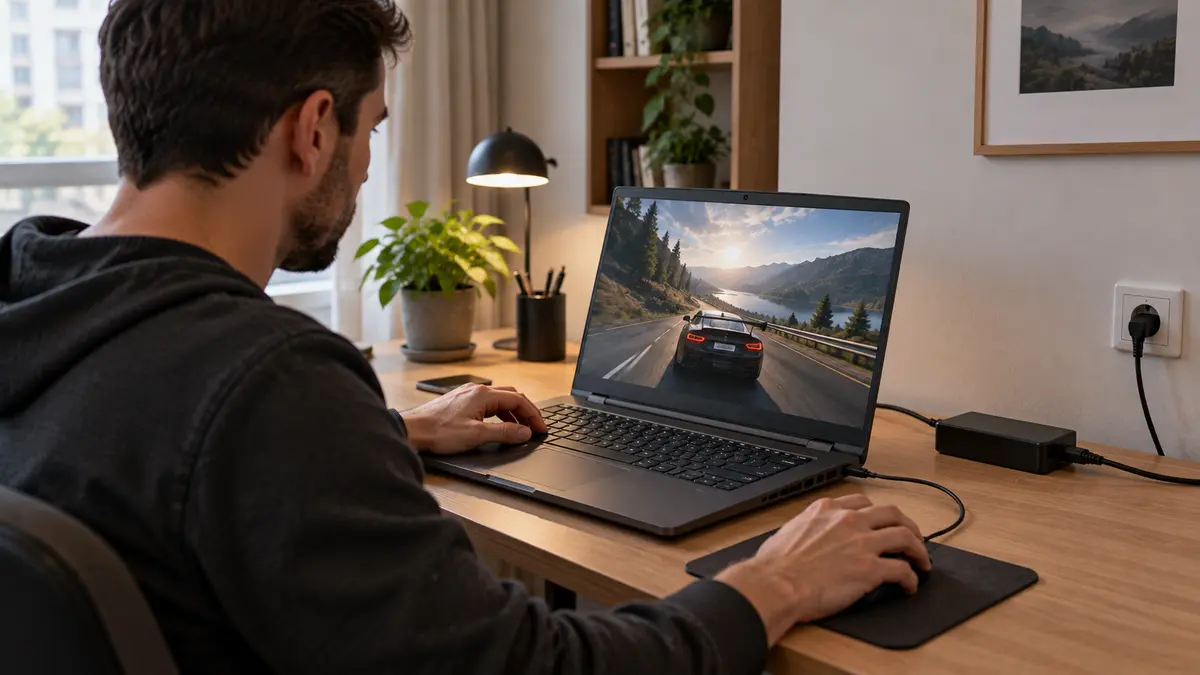
The trade-off can include higher cost, more heat, additional fan noise and a larger charger. A dedicated GPU is not a necessary upgrade for someone whose most demanding activity is a video meeting.
Even the GPU name is only part of the comparison. Laptop manufacturers can configure the same graphics model at different power levels. Cooling and available power therefore influence performance, and video-memory capacity alone cannot rank two GPUs reliably.
For gaming, look for results from the laptop version of the GPU, ideally in the exact machine and at your intended resolution. A thin laptop and a larger gaming model with the same GPU label may not perform identically.
Treat battery-life claims as descriptions of a test
An advertised battery-life figure is only meaningful alongside the conditions used to obtain it. Playing video at moderate brightness is not the same workload as a day of meetings, downloads and document editing.
Battery capacity is commonly expressed in watt-hours, written as Wh. This measures stored energy, not running time. A larger battery can help, but the laptop’s energy consumption matters just as much.
Consider a simplified, hypothetical example: a 60 Wh battery supplying an average load of 6 W would provide about ten hours of energy. At 12 W, the same calculation gives five hours. Real use varies, and this is an illustration rather than a prediction for any laptop.
When comparing battery tests, look for similar brightness, workloads and performance settings. Leave a margin for your own habits and for capacity declining with age. A result that only just matches your working day provides little flexibility.
Charging convenience also matters. A compact compatible charger may be more useful than a slightly longer runtime if you frequently move between locations. Conversely, someone who works for long periods without a socket should prioritise independently tested endurance over a manufacturer’s headline claim.
Check the keyboard, webcam and actual port capabilities
A laptop can be technically impressive and still feel frustrating after an hour of typing.
Where possible, try the keyboard and touchpad. Notice the size and position of frequently used keys, how much the keyboard deck flexes and whether your palms rest comfortably. A number pad can help with regular numerical work, but it changes the position of the main typing area.
For buyers in Moldova, check the physical keyboard layout and printed characters carefully. Adding Romanian or Russian input in the operating system changes what you can type; it does not change the legends printed on the keys. Product photographs may also show a different regional version, so confirm the configuration being sold.
For frequent meetings, consider the webcam and microphones together. A higher webcam resolution is useful information, but not a guarantee of a better image. Sample footage and recordings reveal more about exposure, colour and speech clarity.

Then consider what you need to connect. An external screen, a wired mouse, a memory card or an office network may require ports or adapters that are easy to overlook.
USB-C describes a connector shape, not a guarantee of charging, video output or a particular data speed. One USB-C port may transfer data only; another may also support an external display and laptop charging.
Look for explicit confirmation of USB Power Delivery for charging and an appropriate video capability, such as DisplayPort over USB-C. The charger, cable, dock and laptop must support the functions and power levels you need. A phone charger that physically fits may not supply enough power for normal laptop use.
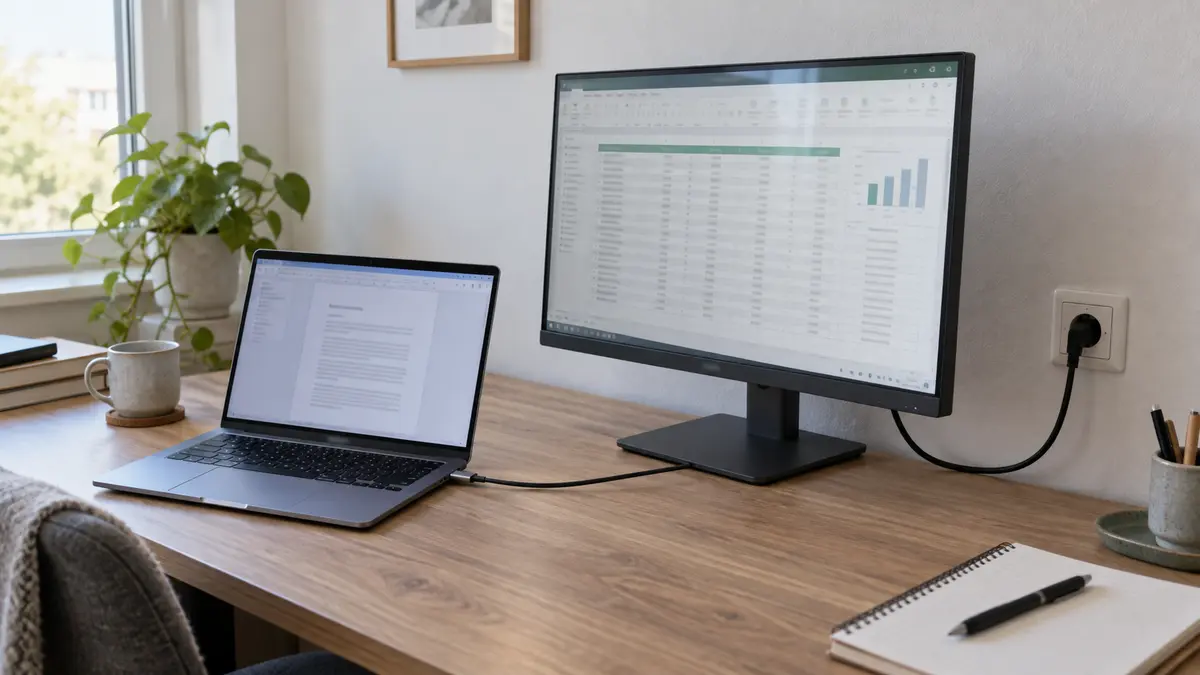
For an external-monitor setup, verify the supported number of displays, their resolutions and refresh rates. Count ports that remain available while charging, not just the total number visible in a photograph.
Judge the complete configuration, not the apparent bargain
Compare final costs in MDL after allowing for anything you genuinely need: an operating-system licence, a suitable adapter, a larger drive or an external keyboard. A laptop listed with FreeDOS or no operating system should not be assumed to include a Windows licence.
Confirm the manufacturer’s full configuration code. Two laptops with nearly identical names can have different screens, batteries, memory arrangements and ports. A review praising a bright display is not useful evidence for a cheaper configuration fitted with another panel.
An older or refurbished laptop can be worthwhile, but assess battery condition, hinges, keyboard wear, charging equipment and software support. Confirm that previous owners’ account or organisation-management locks have been removed. Ask what has actually been checked and what the seller’s written warranty covers.
For an older Windows machine, verify official Windows 11 compatibility. Windows 10’s standard support ended on 14 October 2025, so “Windows installed” is not sufficient information about the computer’s longer-term suitability.
Bring these decisions back to your own day. As a hypothetical example, someone travelling to classes and writing assignments might be better served by a 14-inch laptop with 16 GB of RAM, a 512 GB SSD, a comfortable matte screen and good tested battery life than by a heavier gaming model. Someone regularly editing video may reasonably accept extra weight and fan noise for more memory and stronger graphics.
Neither choice is universally better. The useful question is what you gain in the tasks you perform regularly, and what you give up elsewhere.
You can explore laptops on IVO with that balance in mind. Compare the complete configuration, resolve any unclear details before ordering, and choose the machine that makes your normal working day easier—not simply the one with the most impressive number in its title.